 AudioStrada
Das Handbuch ist auf Englisch und Französisch verfasst.
MIDI and the piano roll
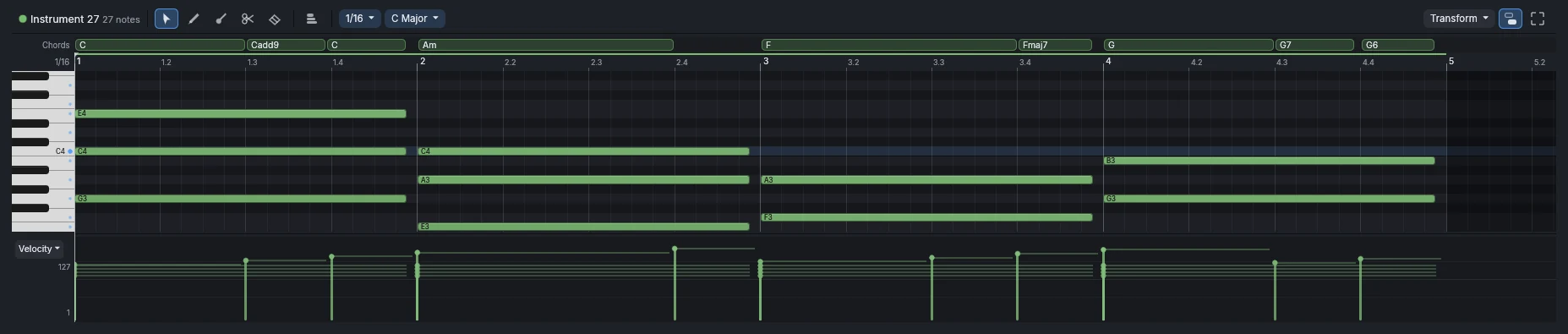
MIDI clips
Track › Add instrument track (Ctrl+Shift+I) creates a track with the built-in synth. Double-click an empty part of an instrument track, or Track › New MIDI clip (Ctrl+Shift+M), to create a clip, then edit it in the Piano roll (Alt+2; Ctrl+P puts it in its own window). A clip grows to hold notes pasted past its end.
The note editor
Double-click a MIDI clip, or View › Note editor of the selected MIDI clip, to edit its notes in a large window over the timeline; Escape closes it. It is laid out as the automation editor, with the same keys:
- At the top, from the left: the tools (P pencil, S selection, B brush, C scissors, E eraser) and Chord, the chord the pencil and the brush add instead of a note; then what applies to the selected notes (Transform, delete), the grids (the snap and its step, the scale), and the view (Z zoom, zoom out, frame the notes). The keys are listed at the right.
- F11 (Control+Cmd+F on macOS, or the button at the right of the bar, or a double-click on its title) makes the editor fill the main window; Escape comes back to the window, a second one closes it. F frames the notes, as it frames the session in the timeline.
- What the tool in hand does is written over the top of the notes.
- The zoom tool: drag across a span to fill the view with it, click to zoom in, Alt+click or right-click to zoom out.
- Everything else works as in the piano roll below: the keys on the left, the lane under the notes, the wheel and the keyboard commands. Other clips show only once added (below): no ghost notes here.
Several tracks at once
The note editor shows every MIDI clip selected in the timeline (Ctrl+click or Shift+click to select more), on one keyboard, each in its track's colour: the bass under the chords, in the same pitch space.
- The list at the left names the tracks. New notes go to the active one, marked in the list: click a track there, or a note of it, to make it active. Its notes are drawn in full, those of the other tracks faint, still editable; a selected note is always in full. A note drawn where the active track has a selected clip goes into that clip; elsewhere, its clip grows.
- Moves, transposition, quantize, transforms, the velocity lane and the keyboard commands act on the selected notes of every track at once; each note stays in its own clip. Everything is one undo step.
- + Add a track brings in another track's MIDI clips, and its cross takes a track out. The timeline's selection follows.
- The keys on the left play the active track; a note dragged or added plays its own.
The note, audio and automation editors take turns: opening one closes the others. All have the same bar, keys, full screen and zoom.
Tools
Keys 1 to 5 while the piano roll has the focus:
| Tool | What it does |
|---|---|
| Pointer | selects, moves (Alt-drag copies) and resizes notes from either edge, draws a rubber band in the empty space, adds a note with a double-click |
| Pencil | adds a note and drags its length |
| Brush | paints a note on each grid step |
| Scissors | cut notes where they are clicked |
| Eraser | removes what it passes over |
The piano roll has its own grid, down to 1/32 with triplets; hold Ctrl to place notes freely.
Navigation
The wheel scrolls through the keys (Shift: in time), Ctrl+wheel zooms time and Alt+wheel the keys, around the pointer. The middle button drags the view; the frame button fits the notes. The view follows the playhead while playing; click the ruler to move it.
Notes sound while you click the keys on the left, add a note or drag one; the keys light up as notes play. Double-click a key to select its notes.
Scale and chords
- Scale shades the keys outside it, can fold the keyboard to the scale's keys and those in use, and keep the notes in it when they are drawn, moved or transposed. Detect from the notes finds it.
- Chords: the chord button makes the pencil and the brush add a whole chord: the one the scale builds on the key (triad or seventh), or a chosen kind, inverted and voiced (close, open, drop 2, spread). The strip above the ruler names the chords the notes make.
- Ghost notes: the other MIDI clips show faintly; double-click one to edit its clip.
Transform
From the toolbar or the right-click menu. Quantize (strength, swing, ends), humanize, strum, arpeggiate, harmonize, chords from notes, variation, randomize, velocity shape and stretch open a panel that previews the result on the notes; Enter applies, Escape cancels. Legato, reverse, mirror, glue and mute apply at once. Q quantizes the selection.
The lane
The lane under the notes edits velocity or probability (a note under 100 % plays only some of the times) as bars: drag one (the selected ones follow), drag across to paint, Shift-drag for a straight ramp, right-click for shapes (crescendo, compress, accents).
It also draws controllers and, with one note selected, its own pitch, pressure or timbre (MPE), drawn inside the note; Own channels gives each note its channel.
Keys
| Key | Command |
|---|---|
| Ctrl+C / Ctrl+X / Ctrl+V | copy, cut, paste at the playhead |
| Ctrl+D | duplicate right after |
| Left / Right | nudge by the grid |
| Up / Down | transpose (Shift: an octave) |
| Q | quantize |
Controllers and MIDI learn
A keyboard's knobs turn the built-in synth of the armed tracks with the standard controllers: CC 74 cutoff, 71 resonance, 73 attack, 75 decay, 72 release, 7 volume (in MPE mode, CC 74 shapes each note instead).
MIDI learn: right-click a fader, pan knob, send level or effect parameter › MIDI learn, then move a control on your MIDI controller. A learned controller does only what it was learned for. The arrows of an effect's presets learn a button the same way.
A controller learned on an effect's parameter is kept for every project, by the kind of effect: learned on Strada-Synth's first macro, it turns the first macro of the Strada-Synth of the armed tracks (else of the tracks selected) in any project. Those of the mixer's faders, pans and sends belong to the project. A controller turns a time or a frequency as its knob does, finely at the bottom of its travel.
A controller moves a control by as much as it turns, from the value the control has: an endless encoder, or a knob left elsewhere by another preset, never makes it jump. Its first message only tells where it is. A knob or a fader that has stops catches up after one full sweep.
Program changes sent by a keyboard (its preset buttons) choose the preset of the built-in instrument of the armed tracks: program 1 is the first preset of its menu.