 AudioStrada
Plugins
Finding plugins
AudioStrada finds CLAP, VST3, VST2 and LV2 plugins (and AU on macOS) in the standard folders and in the folders added in Preferences › Plugins. VST2 folders are those of the VST_PATH variable and, on Windows, the one installers write in the registry, VSTPlugins and VST2 in Program Files; Waves' WaveShell files list each of their plugins. 32-bit plugins do not run. Scan for new plugins looks for new ones; Rescan everything forgets the cached list and scans every plugin again. Windows plugins do not run on Linux.
New plugins are scanned in the background when AudioStrada starts. While the scan runs, the effect browser shows how far it is (and Preferences › Plugins too); the plugins already known can be used meanwhile, the new ones show when it ends.
From a terminal, audiostrada plugins lists the installed plugins, --rescan scans them again.
The effect browser
Click + insert or an empty slot. The browser lists the built-in effects by family (Dynamics, EQ & Filter, Space, Modulation, Color, Stereo, Utility, Amp & Cab, Instrument), then the installed plugins in the same families. A plugin's family comes from what it declares (CLAP features, VST3 subcategories, VST2 category, LV2 class), else from a list of about a thousand known plugins (from PluginDB, which also knows their next versions: Pro-Q 4 is filed like Pro-Q 3), else from the words of its name (EQ, Verb, Comp…). The others go to Other.
- Right-click a plugin's card › Family to file it elsewhere (Automatic goes back to the family found).
- The search reads the names, the families and what they hold, in English and in your language, without minding accents: reverb finds Strada-Verb.
- The format buttons and the Vendor menu at the top keep one format's or one vendor's effects; clicking the vendor on a card does the same.
Safety
Each plugin runs in its own process (Preferences › Plugins › Run each plugin in its own process). If a plugin crashes, AudioStrada keeps playing: the insert turns red and its menu offers Reload plugin.
To start without any third-party plugin, run audiostrada --disable-third-party-plugins, or tick Disable third-party plugins in Preferences › Plugins (from the next start on). The built-in effects stay, and plugin inserts keep their settings.
Plugin windows
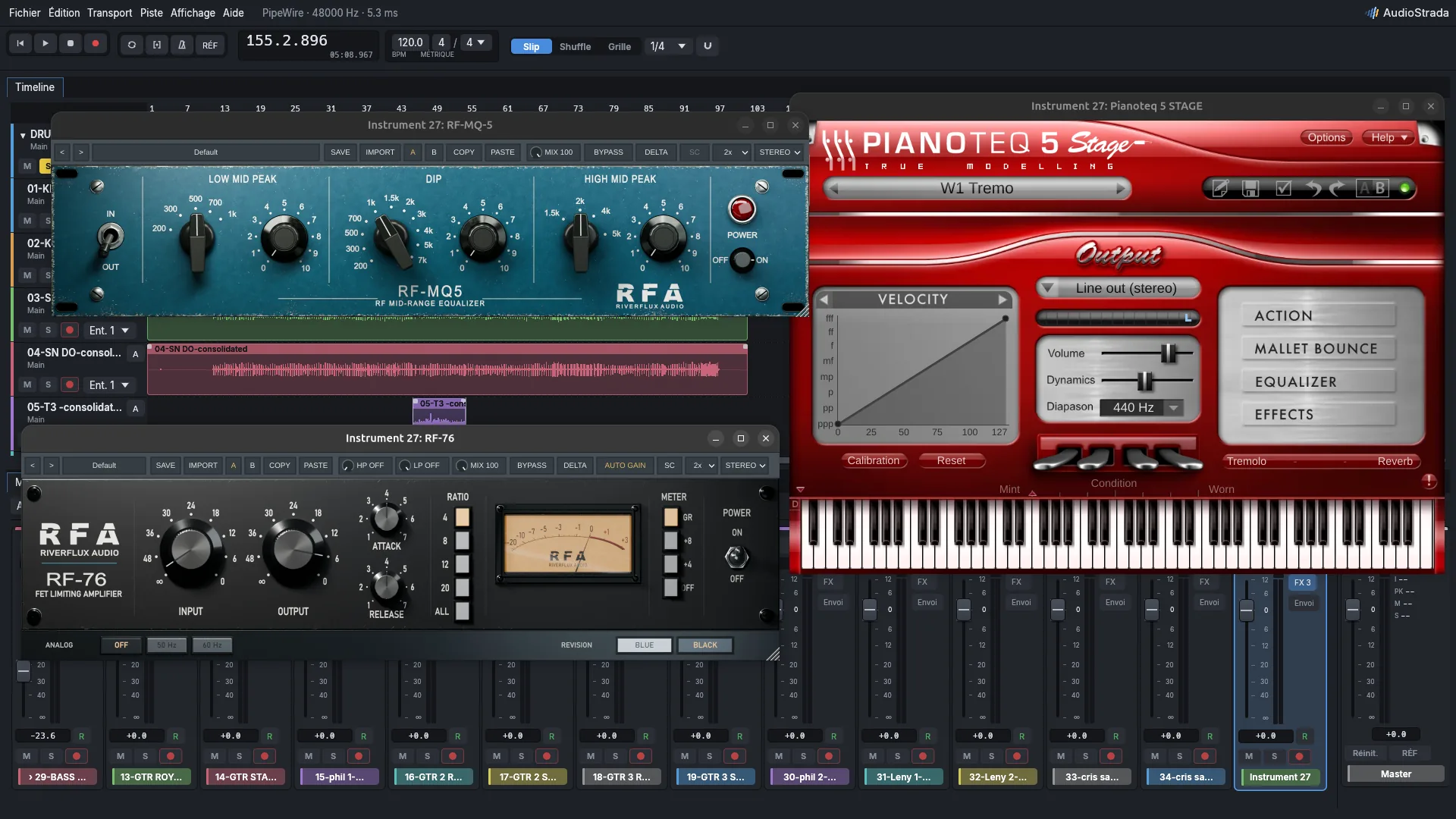
A plugin opens its own window when it is added and when its insert is clicked (clicked again, the window comes to the front). Right-click › Presets, levels and parameters… opens AudioStrada's window for it: presets, A/B and Bypass at the top as for the built-in effects, levels and Match at the bottom, and every parameter; Interface opens or closes the plugin's own window. A plugin without a window AudioStrada can show opens AudioStrada's window instead.
A plugin with a sidechain input, as many compressors and gates, can be keyed by another track, like the built-in compressor: choose the track in the bottom bar of AudioStrada's window, or right-click the insert › Sidechain. This works with CLAP and VST3 plugins. A plugin with a mono input hears both sides of a stereo track, mixed.
Plugin windows follow the selected track; pin one to keep it on its track. They stay above AudioStrada while you use it, on Windows and X11. Under Wayland, AudioStrada runs in X11 mode for that (Preferences › General › Several screens); untick it if a fractional display scale (125 %, 150 %) makes the windows blurry, at the cost of windows that can fall behind.
In a plugin's own window, the transport's shortcuts (Space, R, Home, L…) go to AudioStrada rather than to the plugin, on Linux; the other keys stay the plugin's.